ChatGPT now lets eligible businesses claim their profiles. Which means there's a new item on the marketing to-do list, somewhere between updating your opening hours and remembering who has the domain login.
The good news: the process is fairly straightforward once you know which verification step you're on. The less exciting news: claiming your business and becoming fully verified are not the same thing.
Here's how to do both, what to prepare before you start, and where to look if something gets stuck.
Can you claim your business on ChatGPT?
Yes, if you're the owner or someone authorized to represent an eligible business. OpenAI launched Businesses in ChatGPT in beta in November 2026. You can get started without a ChatGPT Enterprise agreement, an advertising account or a Business Agent.
Availability still depends on your business's type, location and the verification methods supported for it. There's an important difference between two common situations:
- Existing listing: Search for your business and claim the matching profile if it's eligible.
- Business not listed: Eligible online businesses may be offered an option to add their business. Local stores and restaurants currently can claim only existing US listings.
Business Agents have narrower eligibility: they're currently for eligible ecommerce and online service businesses in the United States with a website. You don't need an agent just to claim a profile.
Before opening Business Hub, have the ChatGPT account you intend to use for management, access to your business email or phone if applicable, and someone who can update your website's DNS records if you plan to verify the domain. You may also need official identification and business records later.
The official starting point is ChatGPT Business Hub.
Step 1: Find or add your business in ChatGPT Business Hub
- Sign in to ChatGPT on the web and open Business Hub from the sidebar, or visit chatgpt.com/business-hub.
- Search for your business by name.
- If a matching listing appears, check that it's the right business, especially if several have similar names or locations. Select it and confirm the ChatGPT account you'll use to manage it.
- If you run an eligible online business and no listing appears, look for an option to add it. The available screens may ask whether customers interact with your business at a physical location or through a website.
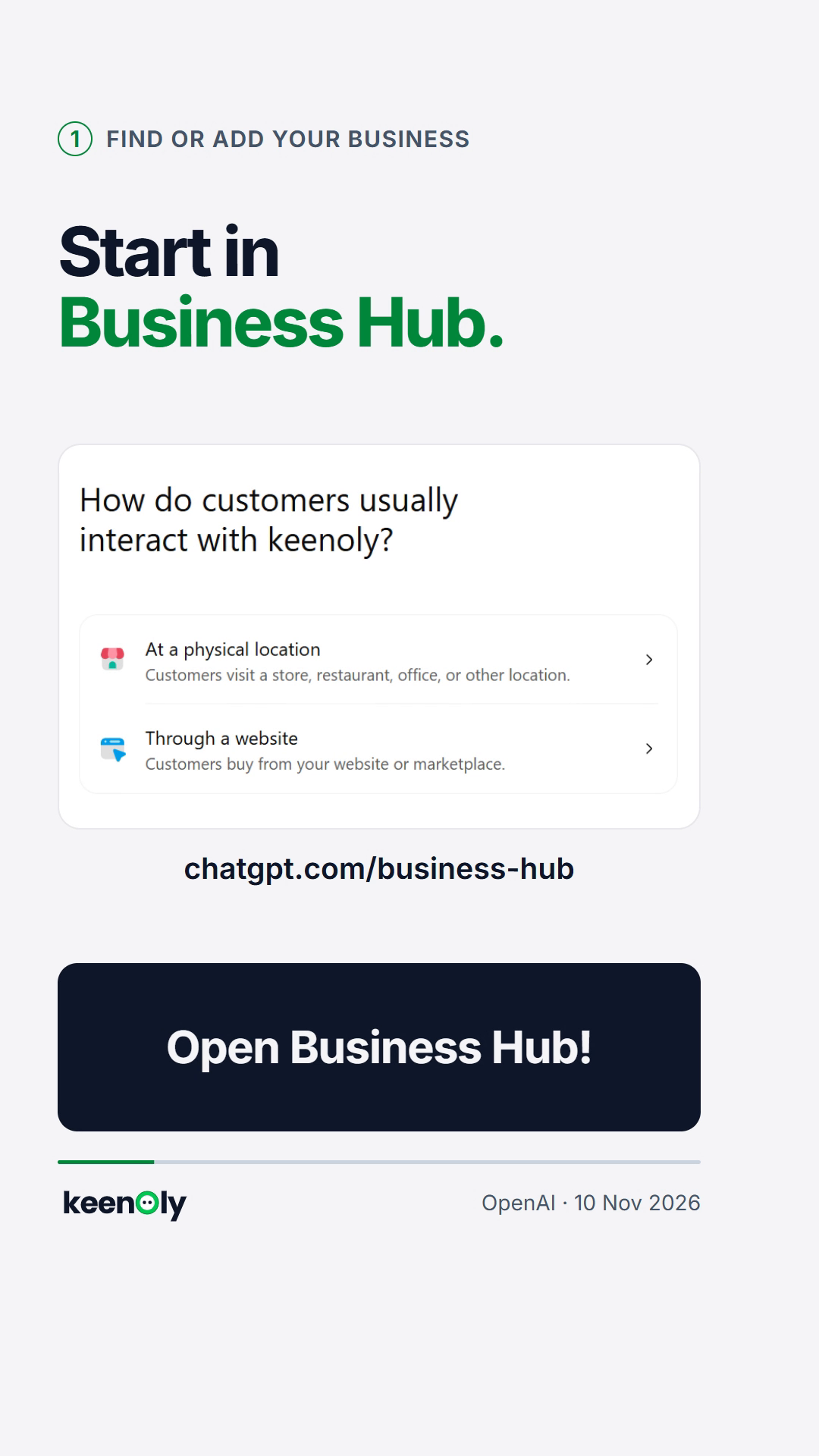
Business Hub entry screen, illustrated in keenOly's explainer video. Your live interface may look different.
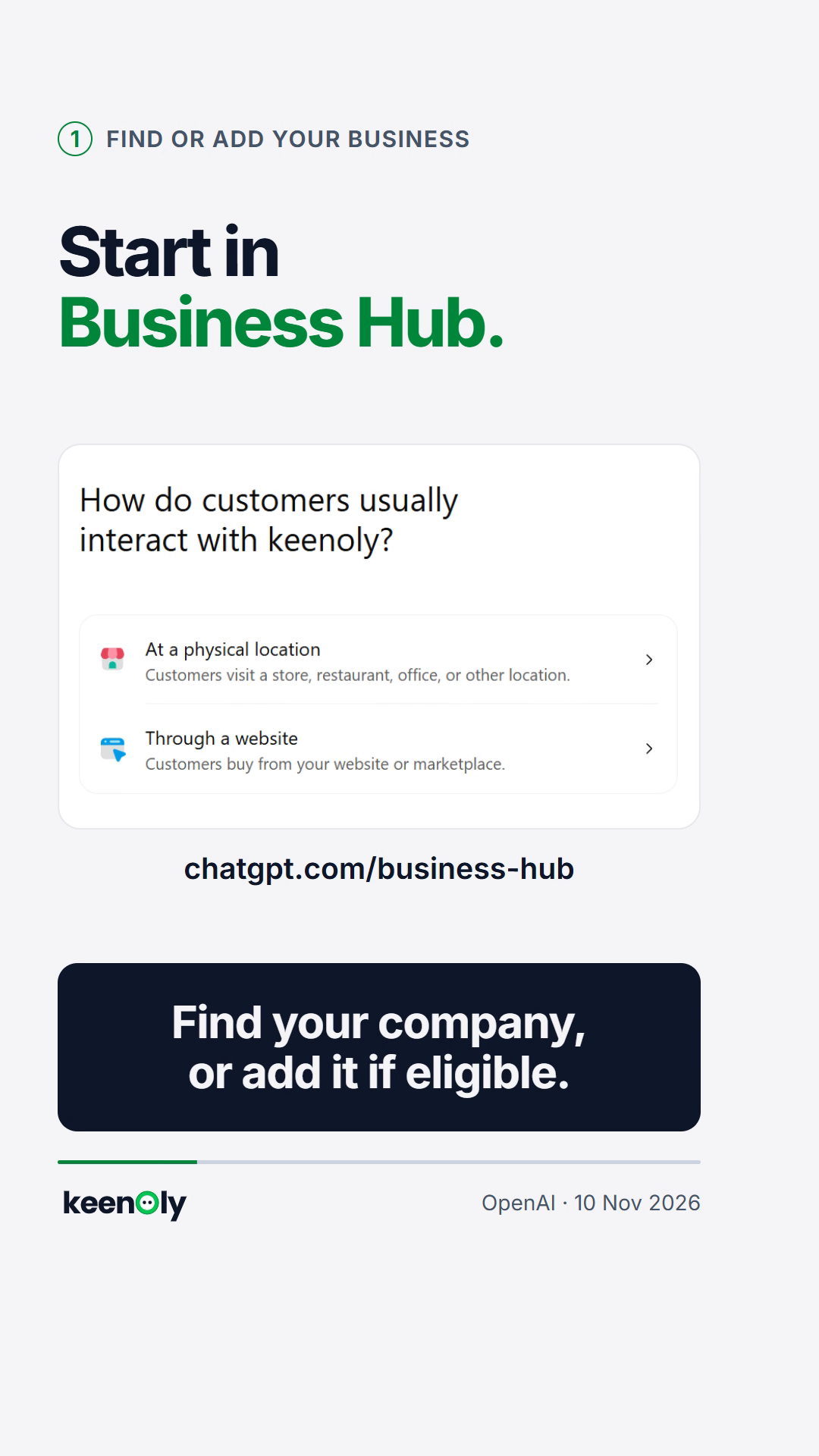
Business-type options shown in the keenOly explainer. Adding a new profile isn't available to every business.
If you're adding an eligible online business, you may be asked to enter its website and provide business details before moving on.
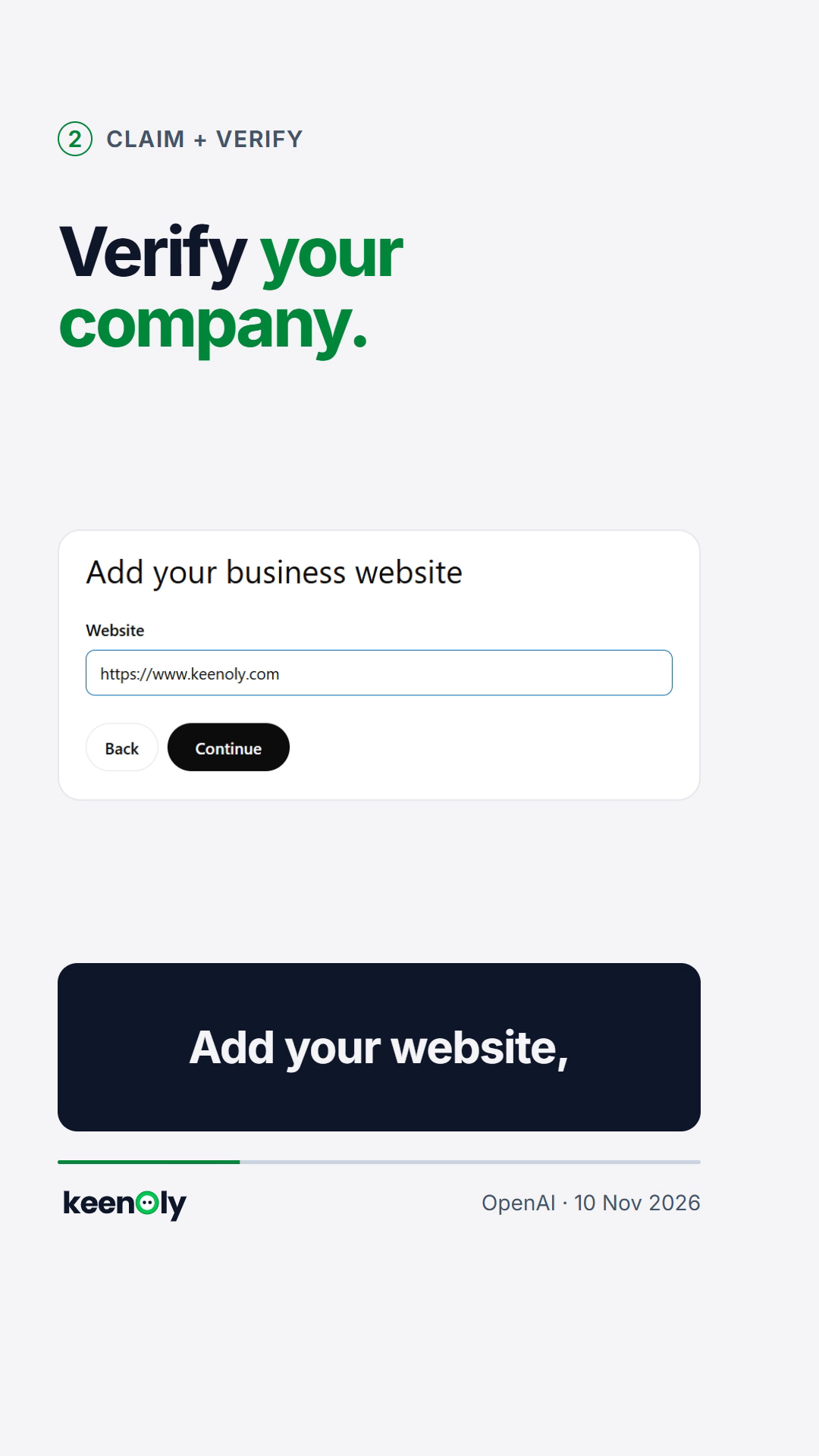
An example website-entry screen. Check the fields shown in your own Business Hub account.
Can't find a local store or restaurant? Don't assume you can create a new listing. Under OpenAI's current rules, those businesses can only claim an existing US listing. If Business Hub presents a locked profile or a Contact support option, use that route rather than trying to create a duplicate.
Step 2: Verify your connection to the business
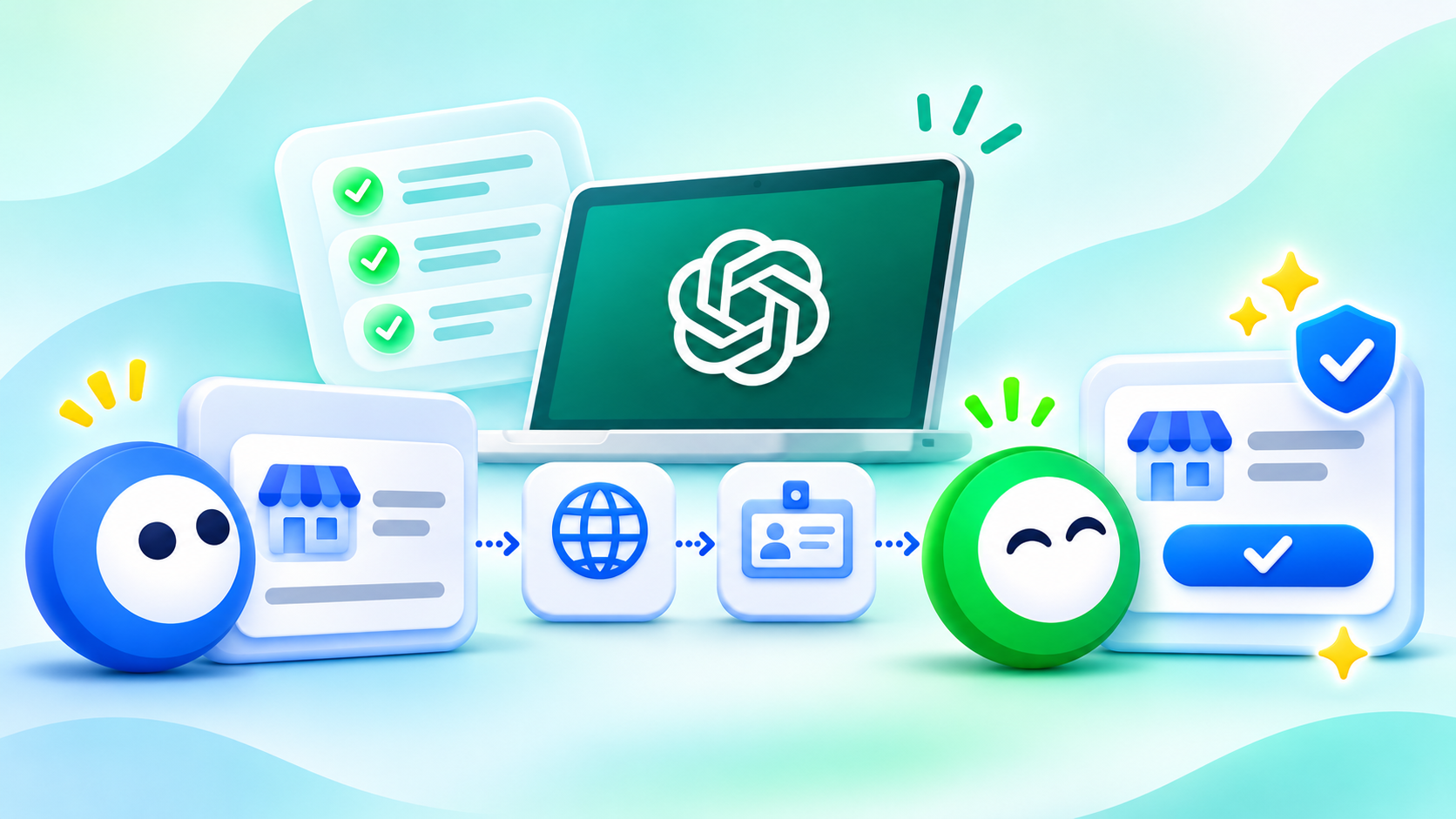
ChatGPT will show the verification methods available for your business. OpenAI documents four possibilities; you may not see all four.
Business phone: Choose Business phone, request a code by SMS or automated call, and enter the code sent to the phone number shown.
Business email: Choose Business email, select Get code, and enter the code sent to the business-associated email address.
Website domain: Choose Website domain and prove you control the domain using a DNS TXT record. We'll walk through that below.
Shopify store: Choose Shopify store, then Connect Shopify. Review the requested permissions, sign in to the relevant Shopify store and follow the prompts.
How to verify your website domain with DNS
This part sounds technical, but it usually comes down to adding one record in the right place.
- In Business Hub, select Website domain. ChatGPT will display a TXT record with a type, name or host, and value or content.
- Sign in to the service that manages your domain's DNS records. This might be your domain registrar, hosting provider or DNS service. If someone else manages the domain, send them the values through a secure channel.
- Add a new TXT record. Copy the type, host/name and value exactly as ChatGPT displays them. Don't use values from screenshots or another company's instructions.
- Save the record. DNS changes may take time to become visible, so an immediate failure doesn't necessarily mean you've done anything wrong.
- Return to ChatGPT and choose Verify domain, then follow any remaining prompts to finish the claim submission.
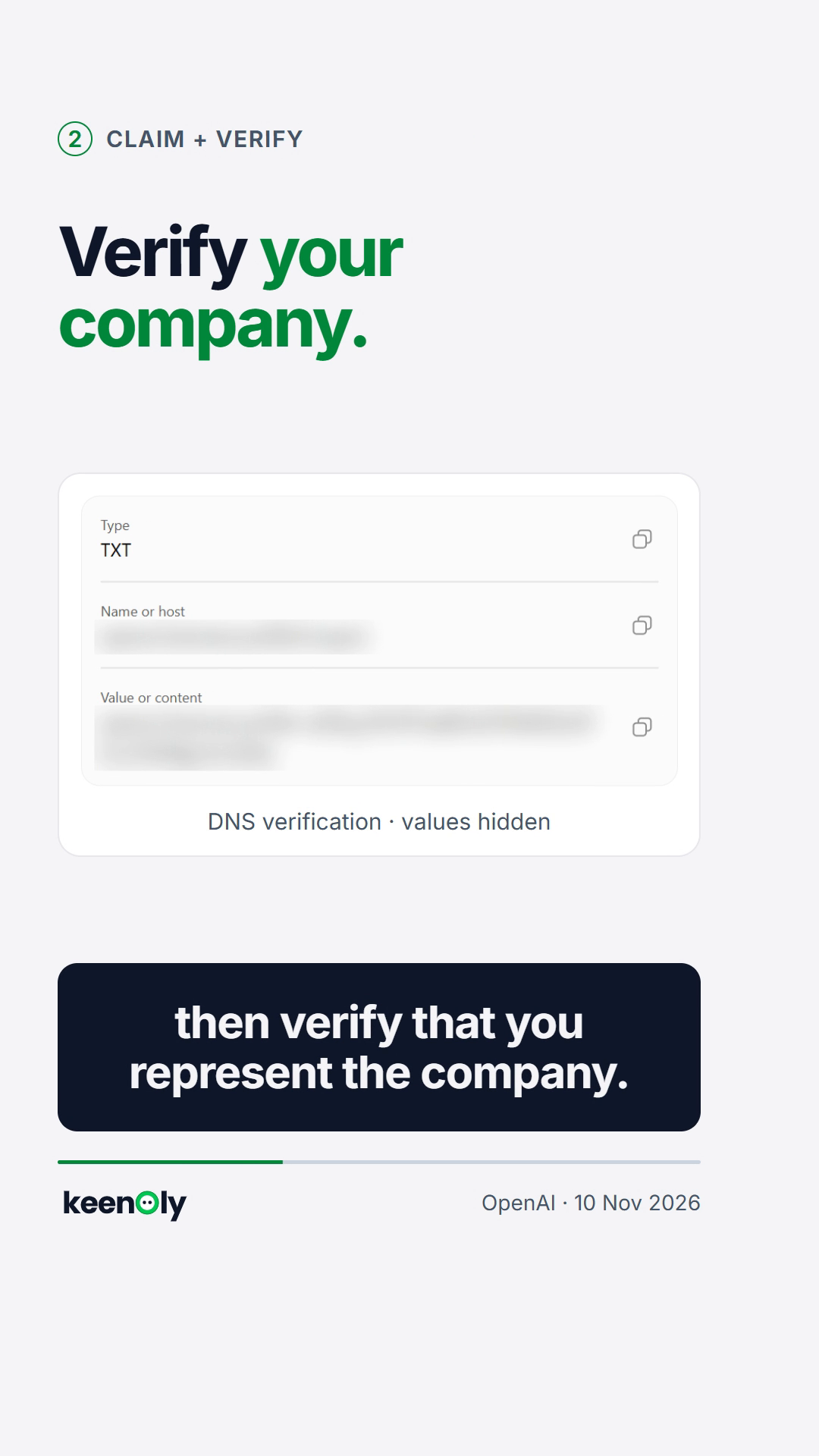
DNS verification example from the keenOly explainer. The record values are intentionally hidden; use only the values provided in your own session.
A small but important distinction: this verifies your connection to the business or domain. It does not by itself complete the later identity check.
Step 3: Get claim approval, then verify your identity with Persona
After you submit the claim, OpenAI reviews it and emails a decision or a request for more information. Review times vary. While your claim is pending, Business Hub may let you cancel it.
Once your claim is approved, there's another step before you can publish business-information changes or view Insights: identity verification through Persona.
This checks that a real person is authorized to represent the business. You may be asked for a government-issued ID, business registration information and evidence of your authority to act on the company's behalf.
To complete it:
- Select Verify with Persona, then Continue to Persona, when prompted.
- Follow Persona's instructions and supply the requested information.
- Wait for OpenAI's email confirming approval or requesting more information.
If you skipped Persona initially, open the Business tab, select your profile, find Complete verification with Persona, and choose Verify.
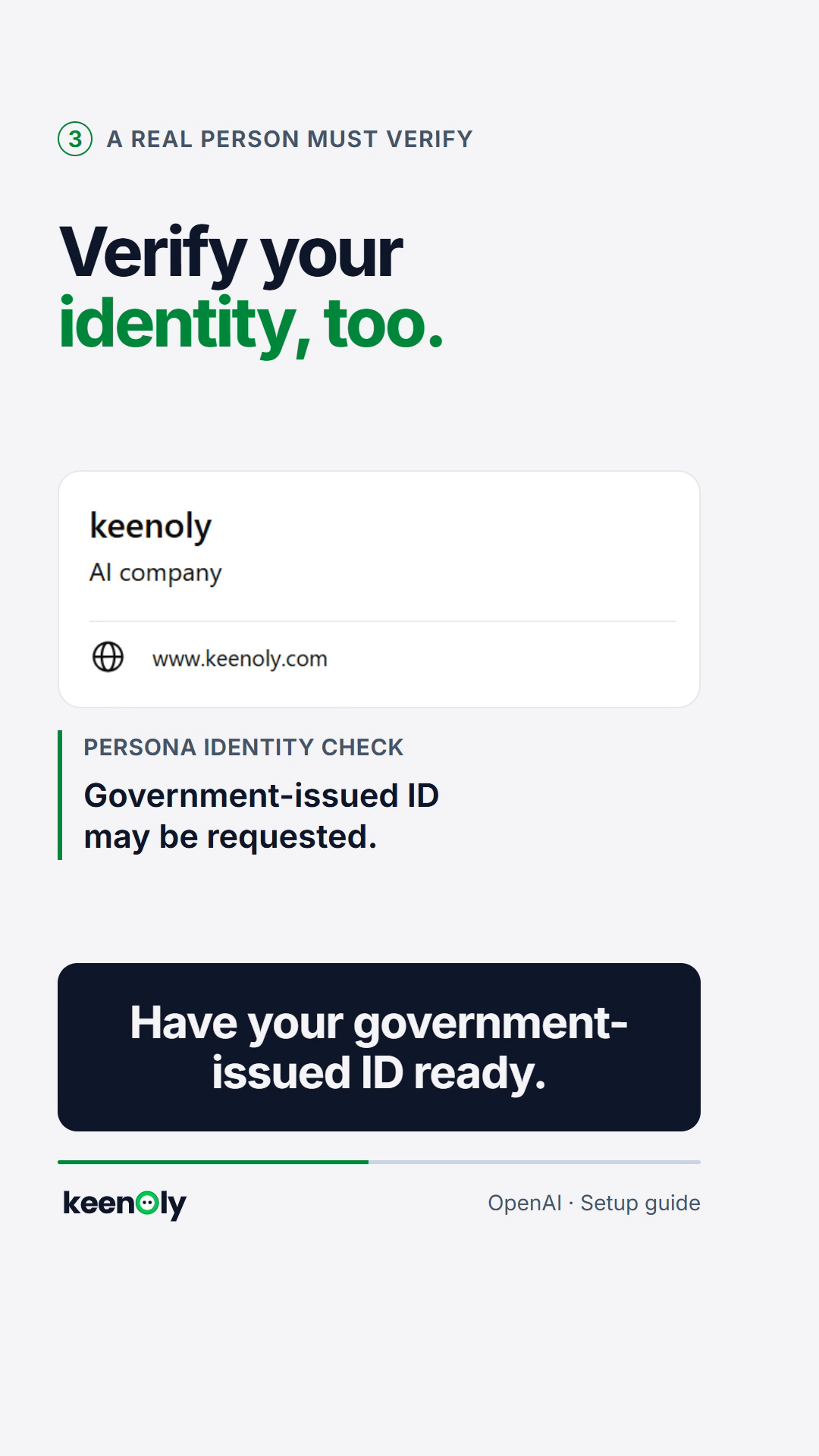
Persona identity verification as depicted in the keenOly video. This frame does not confirm that a real account completed verification.
A submitted ID is not an approved ID. Until Persona verification is approved, the features that require it remain unavailable. The blue verified check appears after this approval, not merely after you start a claim.
One detail worth knowing before you begin: OpenAI says that when Persona is used to create a new business profile, approval automatically publishes that profile. Review your information carefully before submission.
What if ChatGPT business verification doesn't work?
A few common sticking points have fairly specific next steps:
| Problem | What to check or do |
|---|---|
| Your business isn't listed | Eligible online businesses may be able to add one. Local stores and restaurants currently need an existing US listing. |
| Domain verification fails | Check that the TXT record's host and value exactly match ChatGPT's instructions. Allow for DNS propagation, then try Verify domain again. |
| Your claim is pending | Wait for OpenAI's email. It may ask for more information; review time varies. |
| Someone else claimed the business | Open the profile, select the ••• menu and choose Dispute ownership. Follow the Persona prompts to establish your authority. |
| Your listing is locked | Use Contact support if Business Hub shows that option. |
| Persona failed or expired | Follow the email instructions. If Try again is offered, resubmit accurate details matching your official records. |
| Approved, but still shown as incomplete | Contact OpenAI Support with the step, error message and a screenshot with sensitive information removed. |
Avoid submitting duplicate profiles to get around a locked or disputed listing. It's unlikely to make the process easier, and OpenAI's business policies prohibit misrepresenting ownership or creating duplicate profiles.
For account-specific issues, start with OpenAI's official setup guide.
What happens after your business is verified?
Once both approvals are complete, you can manage the information available for your business, including relevant descriptions, website details, categories and policies. OpenAI reviews submitted changes, so they may not appear immediately in every ChatGPT answer.
You may also gain access to aggregated Insights, including website references, clicks and discovery topics, subject to reporting thresholds. Retailers can explore product feeds, while eligible US ecommerce and online service businesses may be offered the option to build a separate Business Agent.
A Business Agent is optional. Claiming a profile, creating an agent and running advertising are different things.
We've already covered the analytics and their limitations in ChatGPT Business Hub Analytics: What It Tracks, What It Misses, and Why It Matters. This guide is about getting your business set up; that one explains what to do with the numbers afterward.
Does verifying your business improve your ChatGPT rankings?
No guaranteed boost comes with the blue check.
OpenAI explicitly says that claiming your business doesn't guarantee higher placement or sales. ChatGPT can still recommend a competitor, even when your own profile is fully verified. Its independent recommendations are separate from the information you provide to your Business Agent.
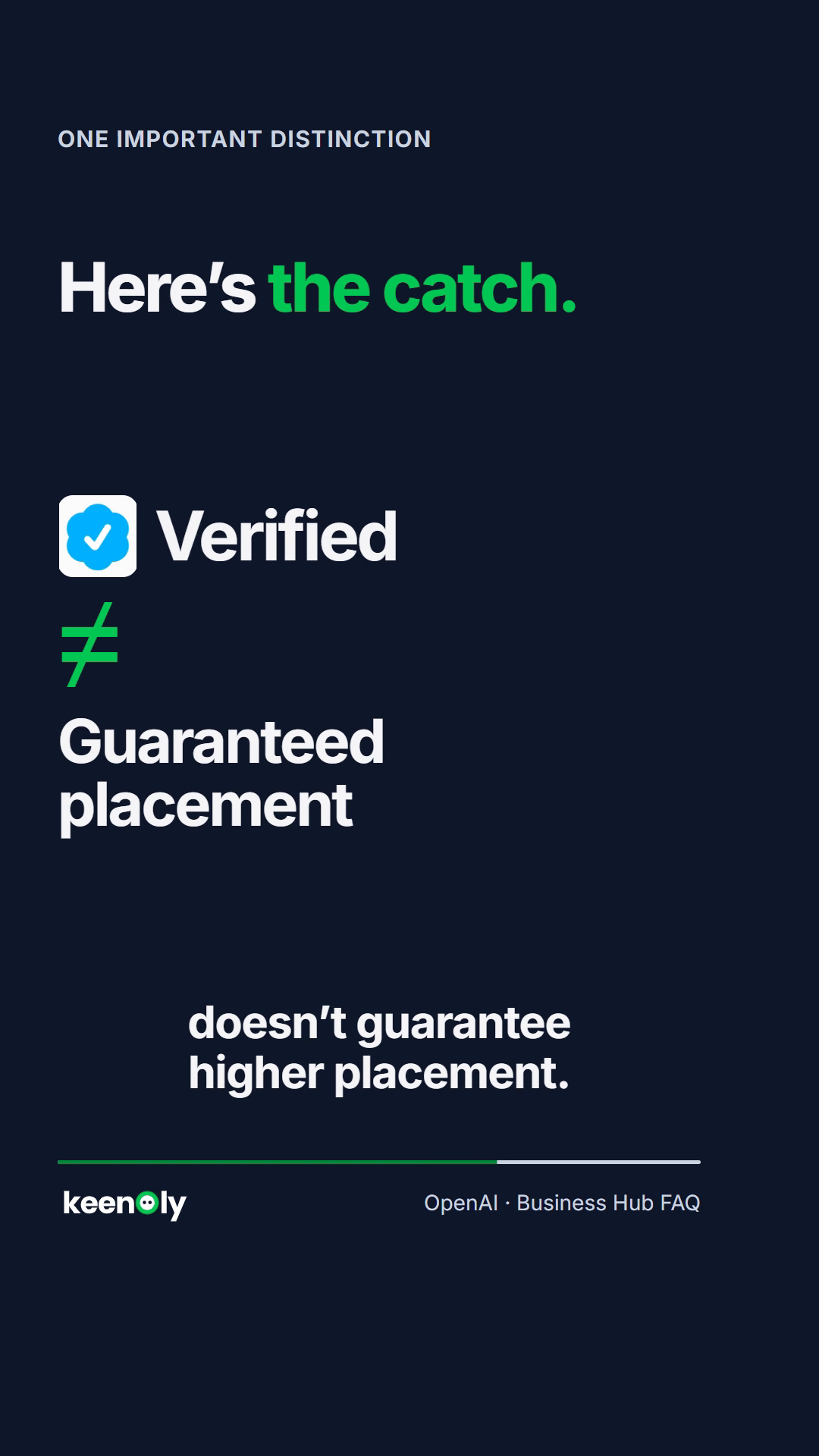
The keenOly explainer's reminder: verification and recommendation visibility are different things.
So it's worth asking two different questions: Have we claimed and verified our business? And does ChatGPT actually recommend us when buyers ask relevant questions?
The first is an administrative task. The second takes a bit of detective work. Oly can help investigate the prompts where your brand appears, who's making the shortlist instead and which sources shape those answers.
Your ChatGPT business verification checklist
- Open Business Hub using an account you're authorized to manage.
- Find the correct business listing, or add an eligible online business if offered.
- Complete one of the verification methods shown for your business.
- Wait for OpenAI's claim decision.
- Complete Persona identity verification and wait for approval.
- Review your business details and any available Insights.
- Check separately whether your brand appears in relevant ChatGPT recommendations.
Claiming your business is a sensible place to start. It's also only the beginning of understanding how AI presents your brand.
And you know Oly. One checked box tends to lead to another question. 💚
Let Oly take a look at your AI visibility. Your first 10 ChatGPT prompts are free, along with 10 questions to Oly about the results.
Frequently asked questions
Do I need a paid ChatGPT Business or Enterprise plan to claim my company?
No. OpenAI says you don't need an Enterprise agreement or an advertising account to claim an eligible business. You do need to meet its eligibility and verification requirements.
How long does ChatGPT business verification take?
OpenAI doesn't promise a fixed approval time. DNS changes can take time to appear, and both claim review and Persona identity review depend on OpenAI's decision. Watch for the email rather than assuming a delay means rejection.
Can an agency claim a client's business?
An authorized representative can claim a business. The claiming admin can later invite teammates or grant agency access through Business Hub. Use individual accounts, and don't forward a personal claim-invitation link as a substitute for access management.
What if my business is already claimed by someone else?
Open its profile, choose ••• → Dispute ownership, and follow the Persona verification instructions. If access is locked or the dispute cannot proceed, contact OpenAI Support.
Will the blue check make my business appear more often in AI recommendations?
Not necessarily. Verification confirms ownership or authority to manage the profile; it doesn't guarantee a position in ChatGPT's independent answers.